-

Your share of non-stop entertainment and more
One-stop-shop for 400+ live channels, TV shows, movies, recharge, managing channels & packs and technical support



Read what others usually ask us
Get your answer in our Frequently Asked Questions (FAQs)
- Do I need a good internet connection to enjoy Live TV/Tata Play On Demand services?
Having a good internet connection with a speed of 2 MBPS or higher enables you to enjoy a better-quality video while viewing Live TV or streaming videos on Tata Play On Demand. However, you can still play a video in low quality with 512 kbps connection.
- What type of internet connections can be used to access Live TV service?
The service works on all Internet connections i.e. 4G/3G mobile connections or on broadband/ Wi-Fi internet connections.
- What is the recommended speed to enjoy a good streaming experience on Wi-Fi?
The recommended speed for a good streaming experience on Wi-Fi is 2Mbps. Minimum speed to play video in low quality is 512kbps.
- I am on 4G connection; however, the quality of the video is still poor?
Speeds on mobile internet fluctuate depending on the signal strength, due to which the quality of the video may also vary.
- Why is the video quality different when I am viewing on my Wi-Fi internet connection at home and on my mobile internet connection?
The video quality depends on the speed of your internet connection. You will have a better video quality on a faster internet connection as compared to a slower internet connection.
- What will happen when I switch between cellular network and Wi-Fi while viewing Live TV?
The viewing will not be interrupted and as mobile devices have capability of giving priority to Wi-Fi connection, the app player will switch to higher or lower streaming profile as per the availability of bandwidth on the Wi-Fi.
- I am not able to view certain channels on Live TV?
The viewing will not be interrupted and as mobile devices have capability of giving priority to Wi-Fi connection, the app player will switch to higher or lower streaming profile as per the availability of bandwidth on the Wi-Fi.
More convenience at your fingertips

Remote Record
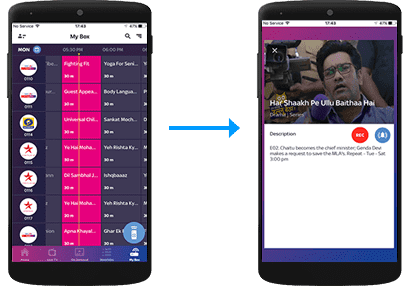
Record shows on a compatible Set Top Box directly from the Tata Play Mobile App.
Remote Record
Record shows on your Tata Play+ Transfer HD Set Top Box via the Tata Play Mobile App
Select the record icon

My Box
Record from My Box section

WI-FI Remote
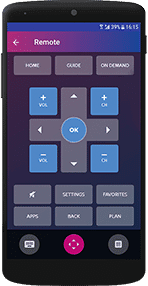
Transform your iOS/Android device into a full remote, a gesture remote or a quick remote.
Tap on the Wi-Fi Remote icon
Do more with the Tata Play Mobile App

Live TV
Enjoy Live TV on the go! Stream 400+ Live TV channels. Watch, play and learn with our exclusive Tata Play services.

My Tata Play
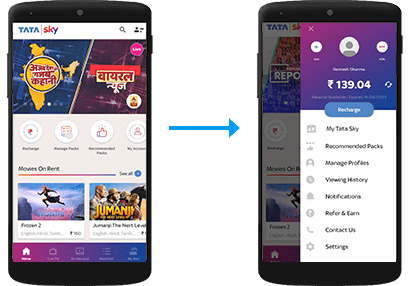
Always be in control of your Tata Play account
Manage your account
View balance and due date, recharge, modify packs and channels, get recommended packs, and subscribe to Tata Play value-added services

Tata Play On Demand
Get access to hundreds of movies, shows, recordings of concerts, learning videos and more, on demand! Enjoy your purchased titles on all connected Set Top Boxes as well as Live TV activated devices.
Select the Tata Play On Demand icon.

NOTE: You can also call our helpline to activate Tata Play On Demand on your mobile device or log on to www.mytataplay.com (Mobile Services section) to select the mobile device/PC/Mac you wish to activate the service on.