-

Your share of non-stop entertainment and more
One-stop-shop for 400+ live channels, TV shows, movies, recharge, managing channels & packs and technical support



Read what others usually ask us
Get your answer in our Frequently Asked Questions (FAQs)
- How can I see all the shows available for the day on a channel?
You can select the schedule option on the channel detail page to see the schedule for the channel.
- Can I rewind shows on Live TV?
You can rewind up to 15 minutes on Live TV.
- Can I change the video quality of the Live TV?
Yes, you can select any one of the following quality settings available under the settings option. These options are available on the video player as well.
- High – Gives best quality as per your network speeds.
- Medium – Limits your video quality to medium even if your network speeds allow for better viewing quality to save data.
- Low – Limits your video quality to low even if your network speeds allow for better viewing quality to save data.
- Auto – Adjusts as per the network bandwidth.
- Will I be able to view commercials as a part of the Live TV feed & Tata Play On Demand episodes on the App?
Yes. Tata Play does not change the channel feed. You will be able to see the same feed on your set-top box and on your device.
- What is On Demand?
On Demand section is where you can access popular movies, TV shows and short videos across the web. You can also view previous – 7 days catch up of your missed shows on your favourite channels.
- How can I watch previous episodes or catch up on my favourite programs?
You can watch this in the other episodes on schedule of live channels, On Demand section of the app or you can also look for the episode in search.
- Will previous episodes or shows be available for all channels?
Previous episodes or Catch up shows will be available for most of the channels available on the app. Tata Play keeps expanding its offering of channels on the set top box. We will similarly expand and make more channels & catch-up available soon on the app.
More convenience at your fingertips

Remote Record
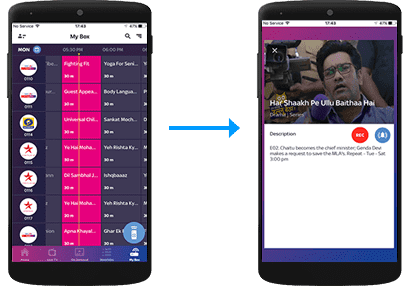
Record shows on a compatible Set Top Box directly from the Tata Play Mobile App.
Remote Record
Record shows on your Tata Play+ Transfer HD Set Top Box via the Tata Play Mobile App
Select the record icon

My Box
Record from My Box section

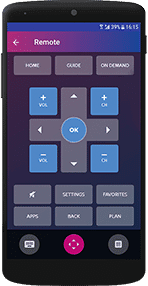
WI-FI Remote
Transform your iOS/Android device into a full remote, a gesture remote or a quick remote.
Tap on the Wi-Fi Remote icon
Do more with the Tata Play Mobile App

Live TV
Enjoy Live TV on the go! Stream 400+ Live TV channels. Watch, play and learn with our exclusive Tata Play services.

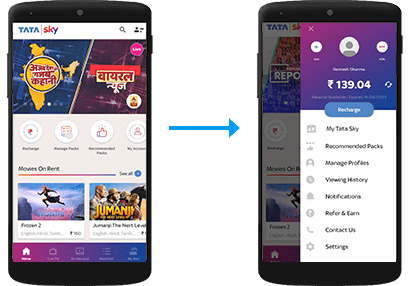
My Tata Play
Always be in control of your Tata Play account
Manage your account
View balance and due date, recharge, modify packs and channels, get recommended packs, and subscribe to Tata Play value-added services

Tata Play On Demand
Get access to hundreds of movies, shows, recordings of concerts, learning videos and more, on demand! Enjoy your purchased titles on all connected Set Top Boxes as well as Live TV activated devices.
Select the Tata Play On Demand icon.

NOTE: You can also call our helpline to activate Tata Play On Demand on your mobile device or log on to www.mytataplay.com (Mobile Services section) to select the mobile device/PC/Mac you wish to activate the service on.