-

Your share of non-stop entertainment and more
One-stop-shop for 400+ live channels, TV shows, movies, recharge, managing channels & packs and technical support



Read what others usually ask us
Get your answer in our Frequently Asked Questions (FAQs)
- I am not a Tata Play subscriber. Can I still access the service?
You can view certain free content such as movie trailers. However you need to be an active Tata Play subscriber to access Live TV and On Demand videos.
- My Tata Play account is currently de-active due to lack of funds; can I still use Live TV/On Demand service?
You need to be an active Tata Play subscriber to enjoy Live TV channels and On Demand videos on your device. De-active subscribers can now recharge their accounts by selecting “Recharge” option on the app.
- Can I watch Live TV and On Demand videos outside India?
No. You need to be in India to be able to use the Tata Play Mobile services.
- Why can’t I watch live TV and On Demand videos outside India?
Tata Play provides services only within the territory of India.
- How do I see the schedule of a channel?
To see the schedule of a channel you should select a channel in Live TV section and then select 'Schedule' option. You can see the schedule for the next 3 days and previous 7 days.
- Who can set programmes for record?
Only Tata Play+ HD subscribers can set recording on their set top boxes using the record option from the app.
- How do I set a programme for remote recording?
- In Live TV section, select the programme from a channel you want to record.
- On the programme de tails page, you will get an option to set it for record.
- On selecting the record option, you will get a confirmation stating the programme has been successfully set for recording on your Tata Play + HD box.
More convenience at your fingertips

Remote Record
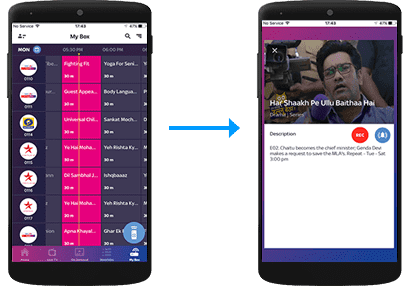
Record shows on a compatible Set Top Box directly from the Tata Play Mobile App.
Remote Record
Record shows on your Tata Play+ Transfer HD Set Top Box via the Tata Play Mobile App
Select the record icon

My Box
Record from My Box section

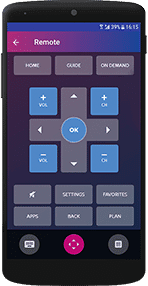
WI-FI Remote
Transform your iOS/Android device into a full remote, a gesture remote or a quick remote.
Tap on the Wi-Fi Remote icon
Do more with the Tata Play Mobile App

Live TV
Enjoy Live TV on the go! Stream 400+ Live TV channels. Watch, play and learn with our exclusive Tata Play services.

My Tata Play
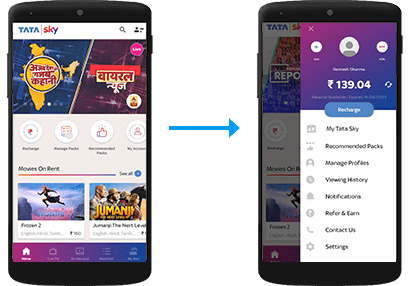
Always be in control of your Tata Play account
Manage your account
View balance and due date, recharge, modify packs and channels, get recommended packs, and subscribe to Tata Play value-added services

Tata Play On Demand
Get access to hundreds of movies, shows, recordings of concerts, learning videos and more, on demand! Enjoy your purchased titles on all connected Set Top Boxes as well as Live TV activated devices.
Select the Tata Play On Demand icon.

NOTE: You can also call our helpline to activate Tata Play On Demand on your mobile device or log on to www.mytataplay.com (Mobile Services section) to select the mobile device/PC/Mac you wish to activate the service on.